Keep your thinking in a notebook
Last updated 2026-10-30
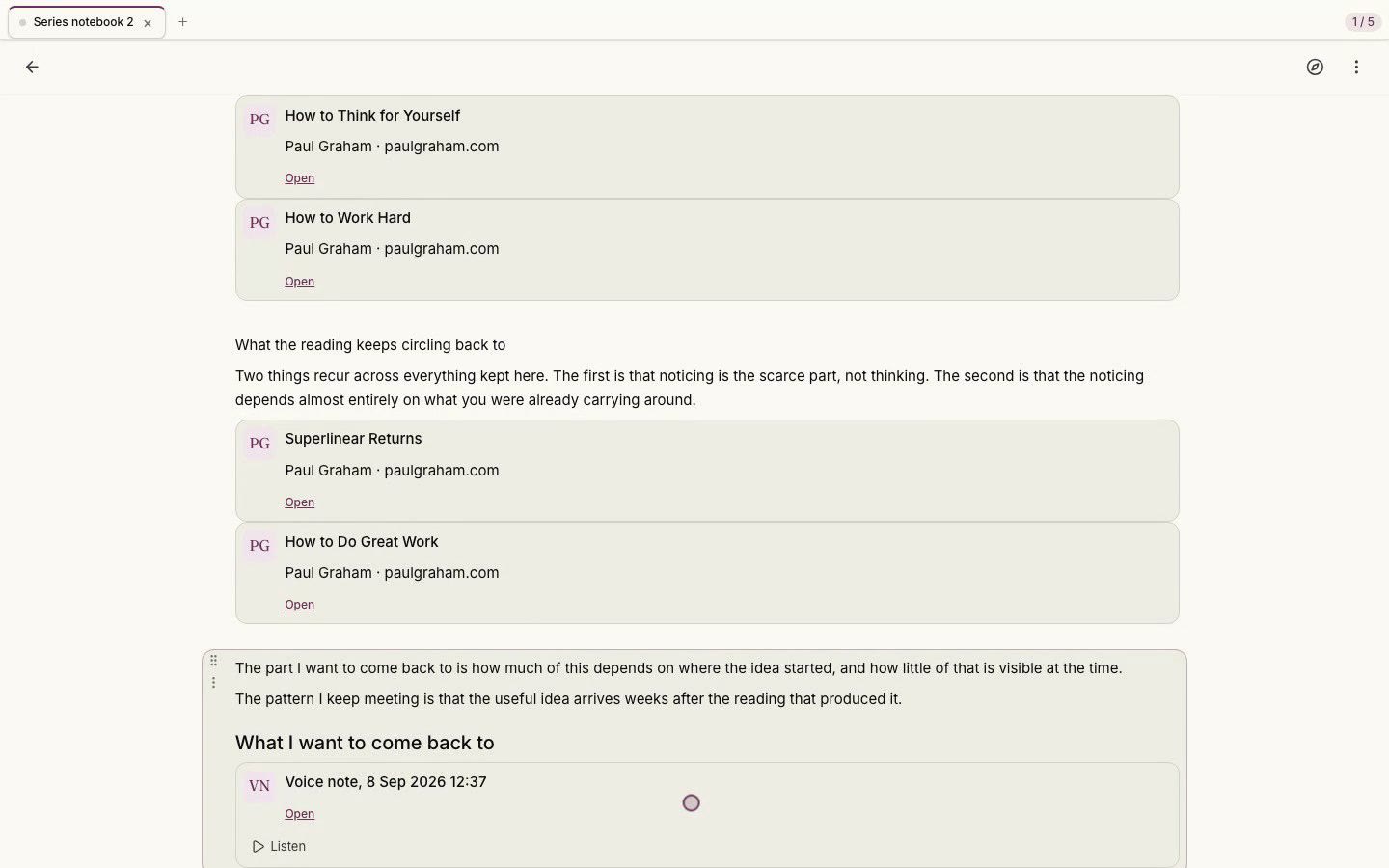
A notebook is your own thinking beside what you kept. It is a page of cells: text you write, items from your Library, links, and questions. Each cell holds one thing, so a notebook can carry a paragraph of your own, then the article it responds to, then a question you asked of both, in the order you put them.
Start one from the New notebook button in Library, from the New notebook row in the Library sidebar, or from the command palette. Your first notebook opens with a short guide already in it, written as ordinary cells you can read, edit, or delete. Every later notebook starts blank, and the guide stays available as a template on the empty page.
There are several ways in. Select text in the reader and choose Add to notebook to send that passage. The reader header has an Add to notebook door for the whole item, with no selection needed, and the menu on a mark or a Library item offers the same. Inside a cell, type @ to reference something from your Library, type / to add a cell of another kind, or paste a link and it becomes a link cell.
Drag a cell by its grip to reorder it, or use the cell menu to move it up or down. Shift and click selects several cells at once. Fold a cell from its menu to collapse it to one quiet line; a click unfolds it. Deleting a cell can be undone from the toast. The cell menu also sends or copies cells to another notebook, and copies a link to the cell: paste that link into any notebook and it shows the cell's current content, with a door that opens the original at that spot. Once something is in a notebook, its Add to notebook control says where it lives, in the reader, on a mark, and in the Library item menu, so you always know what you have already kept.
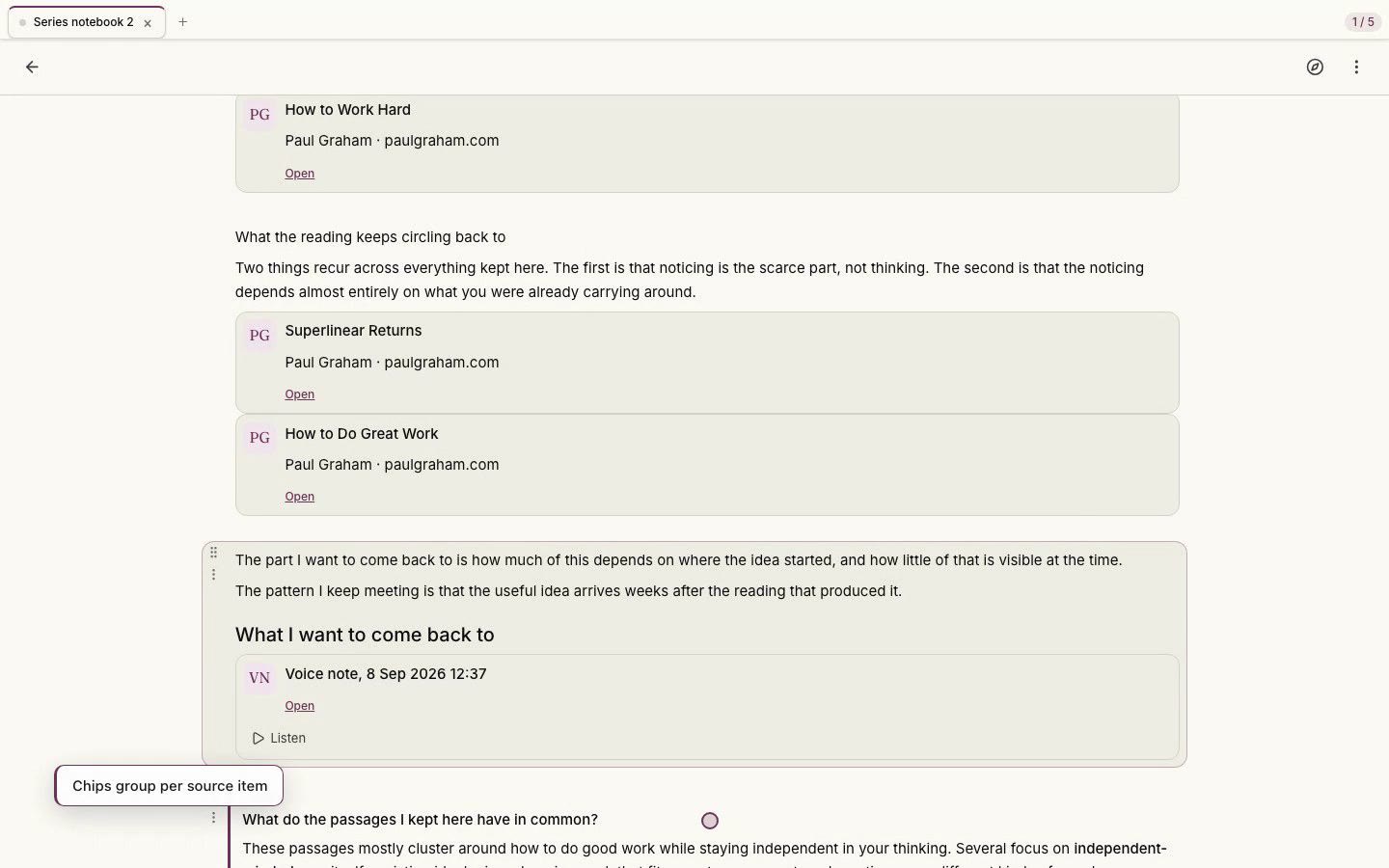
An Ask cell poses a question that is answered only from the sources in the notebook, and the answer cites the passages it drew on, so you can open each one. Keep an answer and it stays as a dated snapshot; a kept thread takes follow-up questions in place. When the notebook's sources do not hold an answer, the cell says so rather than guessing.
A notebook is yours to take with you: export it as markdown or as a notebook file from the notebook menu. The compass in the notebook header starts a short tour of the page, and pressing ? opens the Formatting and shortcuts panel, which lists every writing shortcut and cell action. A notebook is also a Library item in its own right: it shows up in search, it can be referenced from another notebook with @, and Ask can answer from it like any other source.